How to Play
Let's Play PicTrée!
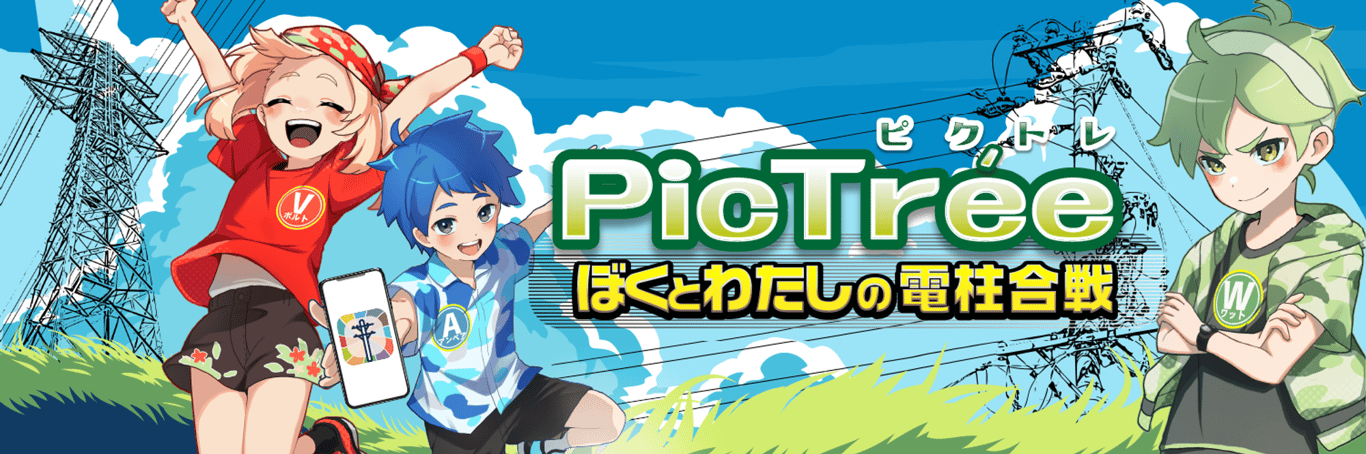
PicTrée is a new type of team battle game that utilizes infrastructure facilities like poles and manholes. Players join one of three teams (Ampere / Volt / Watt) and compete for Photo Assets targets across the map.
Players earn Rank Points through three actions: Check-in, Take Photo, and Pole Connect, and they compete in rankings each season.
You can also earn Reward Coins by taking photos and through ranking rewards, which can be exchanged for Amazon gift cards and other items.
Photos taken in the game are used to help maintain the safety of power facilities, contributing to the local community.
Links
Choose Your Season and Team!
In PicTrée, target areas and photo subjects are set as Seasons for specific periods.
First, choose the season you want to join and pick your team.
Links
Check-In!
Check-in when you approach a Pole.
By checking in, you can earn Rank Points and Treasure Chests.
Capture the Pole!
Take photos of neutral poles from the required angles.
By taking photos, you can conquer the pole and earn a significant amount of Rank Points.
The photos will be reviewed by the operations team.
If approved, you will receive Reward Coins.
Pole Connect!
Connect poles using wire items to earn additional Rank Points. The longer the wire connection, the more Rank Points you can earn.
Links
Attack!
Attack poles are conquered by enemy teams through check-ins. Once a pole's HP is reduced to 0, it becomes neutral, allowing you to conquer it by taking photos.
Compete in Rankings!
Earn Rank Points to aim for the top rankings. Top-ranked players receive additional rewards such as Reward Coins at the end of each season.
Exchange Reward Coins!
Exchange the Reward Coins you've earned by taking photos and ranking rewards for Amazon gift cards or cryptocurrency (DEP).
How to Exchange Reward Coins
Reward Coins can be exchanged for Amazon gift cards or cryptocurrency (DEP).
From the Home > Menu > Profile > Exchange, select your desired exchange option.
What is DEAPcoin (DEP)
DEAPcoin (DEP) is a cryptocurrency used to purchase NFTs on the "PlayMining" GameFi platform operated by Digital Entertainment Asset Pte. Ltd. (DEA), headquartered in Singapore.
Exchange for Amazon Gift Cards:
You will be redirected to a Google Form. Please fill in the required information and submit the form. Your Amazon gift card will be sent to the registered email address within approximately two weeks.
Please note the following when submitting your application:
- Once submitted, you will not be able to edit your application. Please ensure that all information is entered accurately.
- Depending on the circumstances, it may take more than two weeks to process the distribution.
- Rewards will not be distributed if the required conditions are not met.
- Duplicate applications will be considered invalid.
Exchange for “DEP” Cryptocurrency:
- Enter the amount of coins you want to exchange
- Confirm the amount of DEP you will receive
- Complete the exchange
The exchange rate between Reward Coins and DEP is updated regularly
To exchange Reward Coins for DEP, you must link your PlayMining ID (PMID)
How to Use the Home Screen
Seasons
In PicTrée, target areas and photo subjects are set as Seasons for specific periods.
Ranking competitions are held each season, and players can earn Reward Coins and in-game items based on their rankings.
How to Select a Season
- Tap the orange button in the top left of the home screen
- Select the season you want to join from the available active seasons
About Teams
Each season, you can choose a team to join from the three available teams: Ampere/ Volt/ Watt.
Team names may change depending on the season.
Once you choose a team, you cannot change teams during that season.
About Rankings
There are two types of rankings in each season: Team Rankings and Individual Rankings within teams.
Rewards are determined based on the results of the team and individual rankings at the end of the season.
Rank Points
Rankings are determined by the amount of Rank Points players earn.
You can earn Rank Points in the following ways:
- Check in to Photo Assets
- Take photo of a neutral Photo Assets to conquer it
- Connect conquered poles using wire items (Pole Connect)
Rank points are reset every season and start from zero each season.
Rank Points earned through conquering are reduced if the conquered Photo Asset becomes neutral due to another team.
Rank
Your Rank represents your strength as a player and changes based on the total Rank Points you have earned (Total Rank Points).
There are seven rank levels from Rookie to Master. Additionally, ranks from Rookie to Diamond are further divided into four subdivisions (4-1).
The Rank Icon is displayed at the top of the home screen as shown below:
Team Rankings
The Team Ranking is determined by the Team Points of each team.
Team Points are calculated based on the total of each player’s total Rank Points within the team. However, when calculating Team Points, the total Rank Points of players in the top positions of the team’s individual rankings are multiplied by a certain factor.
Individual Ranking
The Individual Ranking is determined by each player’s total Rank Points within their respective team.
Photo Asset
Photo Assets refer to infrastructure facilities such as poles and manholes that are targets for photography.
Players earn Rank Points and compete in the rankings by performing three actions on Photo Assets: Check-in, Take Photo, and Pole Connect.
Photo Asset Icon Display
Different icons are displayed on the map depending on the type of Photo Asset.
Each icon has one of three states depending on gameplay conditions: Neutral, Conquered (Under Review), or Conquered.
In addition to these states, there are also special display patterns as shown below.
Check-In
You can check in by approaching a Photo Asset until you are within range.
Checking in consumes 1 Stamina.
Checking in consumes 1 Stamina.
Benefits of checking in:
- Earn Rank Points
- Discover a Treasure Chest (random chance)
- Attack a Photo Asset conquered by an enemy team (under certain conditions)
You can check in to the same Photo Asset more than once.
However, you must wait at least 30 minutes before checking in again.
However, you must wait at least 30 minutes before checking in again.
Stamina
Stamina is the energy required to perform certain actions.
You can have up to 60 Stamina, and 1 Stamina is restored every 4 minutes after being used.
You can have up to 60 Stamina, and 1 Stamina is restored every 4 minutes after being used.
How to Check In
- Get within a certain distance of a Photo Asset and select the Photo Asset icon
- Select "Check-In" from the Photo Asset information screen
Take Photo
You can take a photo when approaching a neutral Photo Asset within a certain distance.
Benefits of taking photos:
- Conquer the Photo Asset and earn Rank Points
- Discover Treasure Chests (random chance)
- Earn Photo Rewards (when approved)
- Unlock Pole Connect (for poles only)
How to Take Photos
- Approach a Photo Asset within the required distance and tap its icon.
- On the Photo Asset details screen, tap “Take Photo”.
- In the Take Photos screen, tap “Take Photo” for each required angle and capture the specified shots.
- After taking photos from all required angles, tap "Send" to submit.
If You Encounter a Problem While Taking Photos
If something goes wrong while taking photos, you can report the issue.
Tap the megaphone icon in the top right corner of the Photo Asset details screen, or select the text at the bottom of the photo screen to report the problem.
About the Review Process
Photos submitted will be reviewed by the operations team.
Until the review result is determined, the photo will remain in Under Review status.
If the photo passes the review, and a reward is applicable, you will receive Reward Coins.
You can check the review status by selecting "Review Status" on the home screen.
If a review is marked as “Rejected”, you will not receive any Reward Coins, and the Photo Asset will return to a neutral state.
If your submission is rejected, you can check the reason by tapping “Reason” on the corresponding Photo Asset.
If your submission is rejected, you can check the reason by tapping “Reason” on the corresponding Photo Asset.
Links
Offline Photo Take
If your connection becomes unstable on the Home screen, the game will automatically switch to Offline Mode.
In offline mode, you can only take photos of neutral Photo Assets. Other actions like Check-in and Pole Connect are not available.
Photos taken offline will be saved to the Unsent List and can be sent once your connection is restored.
⚠️ If you do not resend the photo within the same day of capture (during the valid photo-taking time), the image will be deleted.
Pole Connect
Pole Connect refers to the action of connecting poles using wire items. By performing Pole Connect, you can earn Rank Points.
Poles that are available for Pole Connect will have a yellow border around their icon.
The following conditions must be met in order to connect poles:
- Conquer a neutral Pole yourself
- Check in at a pole that your team has conquered
(Check-in must be done after the pole has been conquered)
Pole Connect cannot be performed on Photo Assets other than poles.
What Are Wire Items?
Wire items are used to connect poles in Pole Connect.
You can obtain them from Treasure Chests or by purchasing them from the Shop.
Wire items come in different types that determine the maximum connection distance.
The longer the connection, the more Rank Points you can earn.
You can obtain them from Treasure Chests or by purchasing them from the Shop.
Wire items come in different types that determine the maximum connection distance.
The longer the connection, the more Rank Points you can earn.
There is a limit to the number of wire items that can be connected from a single pole (usually up to 2 wires).
Poles that have reached their limit cannot be selected as source or destination for connections.
Poles that have reached their limit cannot be selected as source or destination for connections.
If a pole with Pole Connect becomes neutralized, the Pole Connect will be reset (= connected wires will disappear), and to perform Pole Connect again, you must meet the Pole Connect conditions.
Even if a Pole Connect is reset, the Rank Points earned from it will not be lost.
Even if a Pole Connect is reset, the Rank Points earned from it will not be lost.
How to Perform Pole Connect
- Tap "Pole Connect" at the bottom of the home screen
- Choose the wire item you want to use from the bottom of the screen
(A circular range will appear based on the selected wire length)
- Select the source pole
- Select the destination pole
- Tap "Connect" at the bottom of the screen to complete the connection
Attacking Photo Assets
Each Photo Asset has HP. You can reduce the HP of a Photo Asset conquered by enemy teams through the following attack methods:
• Check-in to the asset
• Use attack items
• Check-in to the asset
• Use attack items
When the HP reaches 0, the Photo Asset becomes neutral again and can be conquered by taking photos.
You cannot attack Photo Assets that are under review.
Missions
Missions are special events held irregularly, where players photograph designated photo spots, such as tourist attractions, within a set period.
(Some missions may also include quizzes in addition to photo-taking.)
By photographing the target spots, you can earn in-game items and Reward Coins.
There are several types of rewards available in Missions:
- Photo Rewards: Given to players who photograph the spots (on a first-come, first-served basis)
- Speed Ranking Rewards: Based on how quickly you complete the mission
- Point Ranking Rewards: Based on the number of photo spots taken and quiz performance
For details on rewards for each mission, select “Rewards” on the corresponding mission screen.
How to Complete Missions
- Tap "Mission" at the bottom left of the home screen
- Select a mission category from the list of available Missions
- Tap "Challenge" on the mission you want to attempt (the map will automatically move to the location of the photo spot)
- Approach the photo target within a certain distance and select the photo spot icon
- Tap "Take a Photo" on the photo target screen
The number of currently active Missions is displayed above the "Missions" button.
Coins
There are two types of coins in the game: Reward Coins and Paid Coins.
Reward Coins
Reward Coins are earned through gameplay. They can be exchanged for Amazon gift cards, cryptocurrency (DEP), or used to purchase items in the shop.
You can earn Reward Coins through:
- Taking photos of Photo Assets (under certain conditions)
- Season ranking rewards
- Gold Treasure Chests that occasionally appear from check-ins or photos
- Photo mission rewards
Paid Coins
Paid Coins are coins that can be purchased through in-app purchases.
They can be used to buy in-game items.
Paid Coins cannot be exchanged for Amazon gift cards or cryptocurrency (DEP).
Item
In PicTrée, you can use game items to gain advantages in the game.
Items can be obtained in the following ways:
- From Treasure Chests obtained through check-ins or Photo actions
- Season ranking rewards
- Photo mission rewards
- Purchasing from the Shop
Items in your possession can be found on the Home > Menu > Item
The main types of items are as follows.
Treasure Chest
You may discover Treasure Chests when checking in or taking photos.
By finding Treasure Chests, you can obtain game items or Reward Coins.
There are three rarities of Treasure Chests: Gold, Silver, and Bronze.
Gold chests contain Reward Coins, while Silver and Bronze chests contain game items.
Silver Treasure Chests are more likely to drop rare game items than bronze Treasure Chests.
Depending on the season, special Treasure Chests may also appear.
About Support Items
PicTrée has the following support items:
Wire Items
These items are used to connect utility poles. Different types allow for different connection distances, and the longer the connection, the more Rank Points you can earn.
Limitations:
- Each utility pole can normally connect up to 2 wires
- Poles that have reached their connection limit cannot be selected as source or destination poles
Attack Items
These can be used to reduce the HP of Photo Assets controlled by enemy teams.
How to Obtain Items
Items can be obtained through the following methods:
- From treasure chests obtained through check-ins/photos
- Season ranking rewards
- Photo mission rewards
- Purchase from the shop
You can check your owned items from Home screen > "Menu" > "Items".
Here are the main types of items:
Shops
PicTrée features the following types Shops:
- Limited Shop: A shop where you can purchase limited-time items using coins
- Item Shop: A shop where you can purchase game items using coins
- Coin Shop: A shop where you can purchase Paid Coins using real money
You can access each shop by going to Home > Shop and scrolling through the shop screen.
How to Check Your Coins Balance
You can check your total coin balance by looking at the coin icon at the top right corner of the Shop screen. This number shows the combined total of Reward Coins (earned through gameplay) and Paid Coins (purchased via the Coin Shop).
To view the breakdown of Reward Coins and Paid Coins separately, tap the "i" icon next to the coin balance.
To view the breakdown of Reward Coins and Paid Coins separately, tap the "i" icon next to the coin balance.
When purchasing items from the Item Shop, if you have both Paid Coins and Reward Coins, Paid Coins will be used first.
Profile
The profile section allows you to view various information about your player account.
You can access it from Home > Menu > Profile.
The following information can be viewed:
- Player name
- Current season information
- Team icon
- Rank and Rank Points
- Performance
- Cumulative Season Records
- Owned coins
- Owned NFT
From your profile, you can also exchange Reward Coins for Amazon gift cards or cryptocurrency (DEP).
You can also check your owned NFTs by linking your PlayMining ID.
Settings
In the Settings menu, you can view your account information and adjust preferences such as language settings.
Accessible via: Home > Menu > Settings
Available information includes:
- Player ID (hidden by default; can be copied)
- Account Currently Logged-in
- Linked PlayMining ID
In the language settings, you can choose between Japanese and English.
From this menu, you can also access Official Website, FAQ, Terms of Use, Privacy Police, License Information, and App Version.
If you have any feedback or questions about PicTrée, please contact us via the "Contact Us" section.
To verify your status as a field inspector, please refer to the relevant links and present your Inspector Budge when needed.
If you wish to delete your game account, select "Delete Game Account."
Pole NFTs
In PicTrée, some utility poles can be enhanced using special Pole NFTs.
By obtaining and activating a Pole NFT, you can gain advantageous effects in the game.
Poles that support NFTs are marked with an NFT icon on the map.
Pole NFTs may not be available in some seasons.
Please check the announcements for each season for details.
Please check the announcements for each season for details.
Effects of Pole NFTs:
Using a Pole NFT grants the following effects:
Effect 1 | Allows you to immediately conquer the pole and enables Pole Connect. |
Effect 2 | Increases the pole’s maximum HP to 15,000 and fully restores its HP. |
Pole NFTs can only be used after the "First Time Photo" of the corresponding pole has been taken
Each Pole NFT can be used only once per season
How to Get Pole NFTs
Pole NFTs can be purchased either in-game or through PlayMining NFT marketplace.
Where to Purchase: | How to Purchase: |
In-game pole information screen | Using Paid Coins or Reward Coins |
PlayMining NFT | Using DEAPcoin (DEP) or credit card |
Purchased Pole NFTs can be synchronized in-game by selecting
Profile> Confirm> Sync NFT.
Please note that the PlayMining NFT marketplace does not display pole locations on a map, so we recommend checking the pole's in-game location before purchasing.
A PlayMining ID and wallet setup are required to purchase Pole NFTs
Linking Your PlayMining ID
Safety Precautions While Playing
Since this is a game that requires physical movement, there are potential risks of personal injury or conflicts with local residents depending on how you play.
Please read the following safety precautions carefully, and always play with a strong consideration for local residents and your surroundings.
About Investigator Cards and Armbands
During special events, we distribute items such as armbands and "Under Investigation" cards (with neck straps). Please make use of them when taking photos.
Inspector Badge
There is an Inspector Badge display function in the game that can be used to explain your activities if any issues arise.
You can access it from: Home > Menu > Settings > Display Inspector Badge.
Please select the badge for your current season and use it when explanations are needed.
How to PlayHow to Exchange Reward CoinsHow to Use the Home ScreenSeasonsPhoto AssetCheck-InTake PhotoPole ConnectAttacking Photo AssetsMissionsCoinsItemTreasure ChestShopsProfileSettingsPole NFTsLinking Your PlayMining IDSafety Precautions While PlayingAbout Investigator Cards and ArmbandsInspector Badge